


Sara Heritage is a tech and gaming journalist, who’s currently making her way up to Master Ball rank in Pokemon Champions. Bylines in IGN, GAMINGbible, The Gamer and more. You can usually find her tinkering with tech, or restoring old consoles, always with one of her 3 cats nearby. Come and talk with her over on Twitter @SHeritageJourno.
There’s nothing more frustrating than waking up to a half-dead phone, despite it sitting on charge on your bedside table all night. Unfortunately, Google Pixel users have been reporting a recent battery optimization issue on the Google forums that is gutting battery life, since the April 2026 Android update, even when the phone isn’t in use.
According to 9to5google, Pixel 6, Pixel 7, Pixel 8, Pixel 9, and Pixel 10 users living with this are reporting losing several percentage points every 2–3 minutes when the phone is idle. In some cases, the screen on-time has been cut by 50%, which is unacceptable for a flagship device. While it may at first feel like a first-world problem, the impact is staggering. Users have reported missing morning alarms, losing GPS navigation in the middle of traveling, even something as annoying as needing to find a charger by 2pm.
If you’re experiencing this issue, rest assured you’re not alone. Google has acknowledged the issue, not that the issue is seemingly stemming from a glitch that prevents the CPU from entering ‘deep doze’. Hopefully, we will see a permanent fix in the May update, but until then, here is how you can reclaim some of that lost power.

Switch to Wi-Fi whenever possible
While your Pixel phone is struggling with battery optimization, you don’t want it fighting for a cellular signal as well. Make sure you have a VPN on your phone to stay protected in public areas.
A bonus tip here: try swapping to Airplane Mode when you don’t need to use Wi-Fi to further save battery percent.
Turn on battery saver mode
Sounds like a simple idea, but did you know Google Pixel phones (Pixel 3 and later) have a lot of hidden features, including a hidden extreme battery saver mode which can extend battery life up to 100+ hours? This pauses most non-essential apps, notifications, and slowing processor speeds. Go to Settings > Battery > Battery Saver and enable it earlier in the day, not just when your phone hits 20%.
Disable always-on display
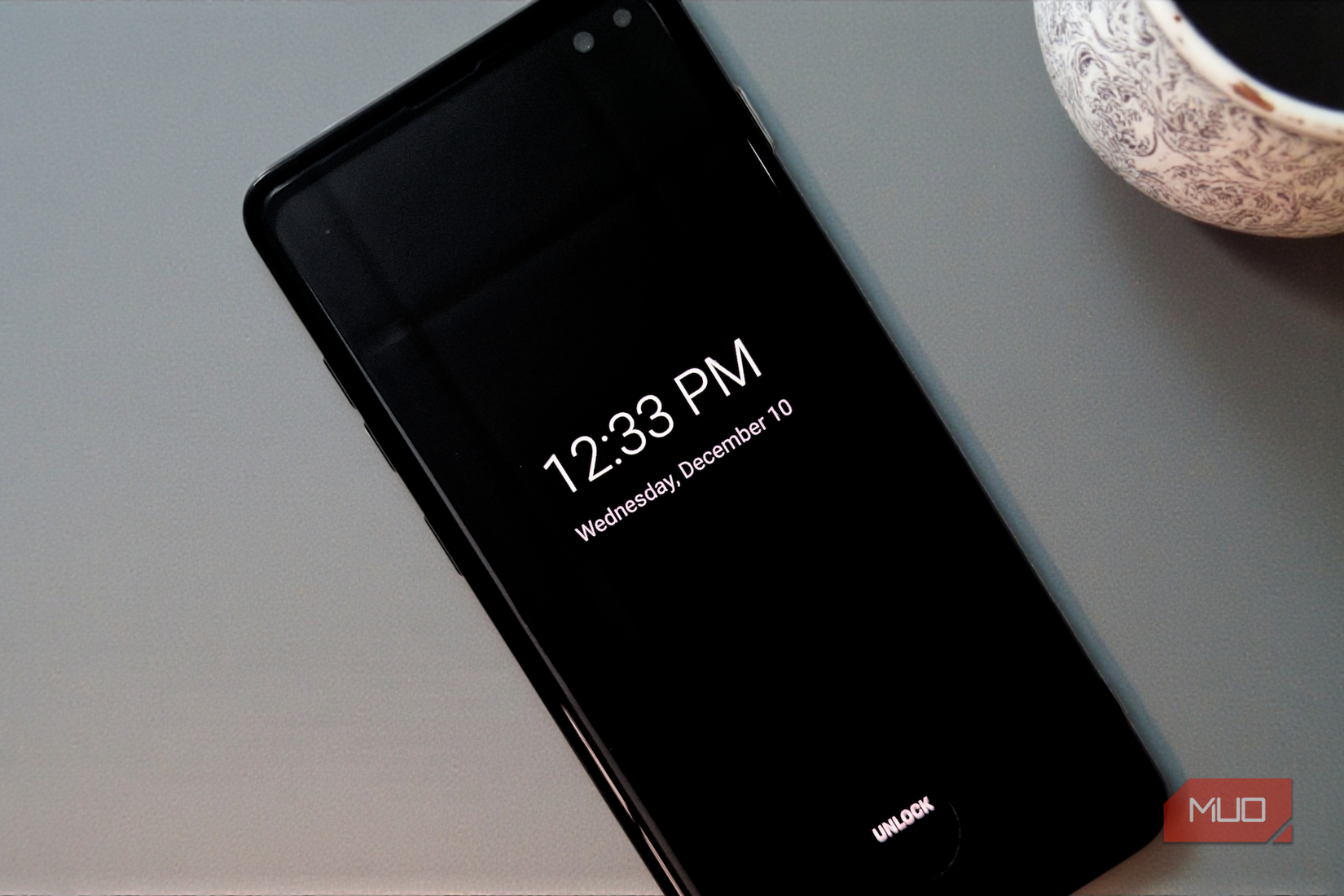
It’s a shame to have to kill a great Google Pixel feature, but an always-on display is a real battery drain, even when there isn’t a battery optimization glitch happening. You can disable the always–on display by going to Settings > Display > Lock Screen and turning off “Always show time and info.”
Limit background activity
The core of the issue is “CPU wake ups,” where apps or system services keep the processor active. To fix this, you can check Settings > Battery > Battery Usage to identify any apps that haven’t been opened in a while, but are showing a high percentage of usage. Tap it and click “Restricted” under the “Manage battery usage” section. This prevents the app from waking up your phone to check for updates or notifications.
If you are experiencing this issue, Google has requested that you file bug reports to help it identify and solve the problem via the official issue tracker.

Google Pixel 10a
- SoC
-
Google Tensor G4
- Display
-
6.3-inch Actua pOLED display, 1080 x 2424 resolution, 60-120Hz, 3000 nits peak brightness
- RAM
-
8GB
- Storage
-
128GB, 256GB
- Battery
-
5,100 mAh
- Ports
-
USB-C
The Google Pixel 10a is a budget-oriented smartphone with a flat back and long battery life. It’s powered by the same Tensor G4 chip as its predecessor, and many key specs are identical to the Pixel 9a. However, you do get a brighter screen, better modem, new software features, and Android 16 with seven years of software support.


 English