


Shimul studied pyschology as her major but never looked back at her degree once she graduated. She began her journey in college as a social media intern and eventually became a social media manager for publications like iGeeksBlog, Guiding Tech, and MySmartPrice, along with popular tech influencers like Rajiv Makhni.
For the initial years of her career, she focused primarily on social media until she joined MySmartPrice, where she stepped into the world of consumer tech writing. That’s where her love for writing really took off, especially when it comes to the Apple ecosystem, Android smartphones, and finding clever tips and tricks that make everyday life easier.
When she’s not reading or writing, you’ll probably find her cooking and making sure everyone tries her delicious food.
I use a MacBook Air M2 as my primary laptop, and I absolutely love it for both productivity and entertainment. That said, there’s always been one recurring issue: the ports. Out of the box, you only get two USB-C ports, a MagSafe charging port, and a 3.5mm headphone jack. That’s not enough at all. I want more connectivity without giving up the MacBook experience, and that’s where a USB-C hub becomes essential.
After using a hub for a while, I’ve realized something important. It handles all my connectivity needs in one go, but there’s a downside that no one really talks about. Using a hub can affect your laptop’s battery life, and I’ve definitely noticed it on my MacBook.

4 tiny USB-C accessories I keep in my bag that fix the most annoying phone problems
There’s lots more you can do with the USB-C port on your smartphone than just charge it, and I keep some accessories in my bag to solve common issues.
The price of always being prepared

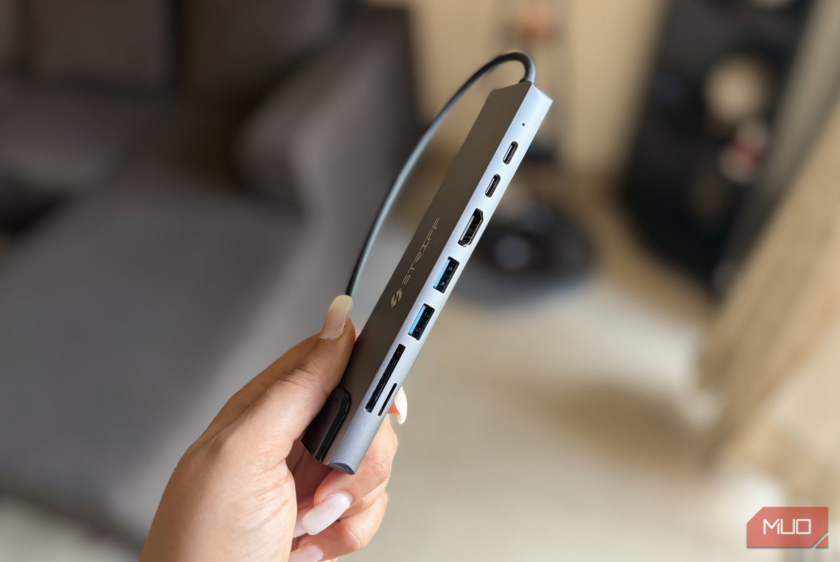
I have been using a bus-powered USB hub for my laptop for quite some time now, and the biggest perk is its portability. I can toss it in my bag and take it anywhere, and because it’s plug-and-play, it doesn’t need a wall outlet to work. It’s really convenient, and for a while, it felt totally amazing.
But here’s the catch. Whenever I had the hub plugged in, my MacBook’s battery drained faster than usual, even when nothing was actually connected to the hub. This happens because of something called idle draw. To stay ready, the hub constantly communicates with your laptop, using roughly 1 watt of power even when it appears to be doing nothing. That number might sound negligible for now, but leave it connected all day, and it eventually adds up. The reason it stays active is simple — it has to be ready to detect any device you might plug in at a moment’s notice. Say, for instance, if you connect a keyboard, a mouse, or an SD card, the hub instantly recognizes it.
It’s also important to keep in mind which devices you’re connecting to your hub. Small peripherals like a keyboard or a mouse use very little power, usually around 100mA, so they hardly make a dent in your laptop’s battery. On the other hand, storage devices like SSDs or external hard drives can draw over 500mA to 600mA, which is much higher and can significantly impact the battery life. So, the type of device you plug in does make a big difference in how much energy your hub will ideally consume.
How to dodge this power pitfall
Don’t let your hub sneak away your power

When you’re not actively using a USB-C hub, the best approach is to unplug it once and for all. This completely stops the hub from drawing power in the background.
I didn’t pay much attention to this at first, either. Leaving the USB-C hub plugged in overnight felt harmless. But after a while, something felt off. My MacBook’s battery wasn’t holding up the way it usually did. The drop was subtle at first, then hard to ignore. That’s when curiosity got the better of me, and I decided to test it in a more practical, real-world way.
I picked up a Type-C voltage ammeter to see exactly what was going on behind the scenes. The setup was simple — the ammeter was connected to the MacBook, and the USB-C hub was plugged into the ammeter. Even without anything else connected to the hub, it consistently draws around 0.85W to 1W. That constant trickle is what’s known as idle draw, the power a device consumes just by being plugged in, even when it’s not actively in use. For a bit more context, the hub’s power draw only went up to around 3W when an external SSD was connected. That’s just about 2W more than what it was already consuming while sitting idle.

When I started the test, my MacBook was sitting at 67% battery. I left it untouched for 30 minutes with no apps running and no interaction, essentially in sleep mode. By the end of that half-hour, the battery had dropped to 59%. So, the hub wasn’t just sitting there quietly. It was slowly draining the battery in the background. Keeping it plugged in all the time might seem convenient, but over hours or overnight, that small and constant power draw quietly adds up and chips away at your battery far more than you’d expect.
On top of that, I started noticing another issue. The next day, when I picked up my MacBook, the USB-C hub would often feel noticeably warm. It’s not dangerous, but it’s definitely something to be aware of. These hubs can heat up when left connected for long periods, especially if multiple devices are attached, which adds another reason to unplug them when they’re not in use.
While we’re already on the topic of battery care, there’s another important tip. Keeping your laptop plugged in constantly after it reaches 100% is not ideal. Most modern laptops, including MacBooks, have built-in battery optimization features that limit charging and slow down battery aging, but the safest approach is to unplug once your battery reaches around 80%. This helps reduce long-term wear on the battery and keeps it healthier. Small habits like these can make a big difference if you want your laptop to last for years.

I stumbled, so you can glide past this
There’s no denying that a USB-C hub can become a culprit behind unexpected battery drain. At the same time, if you’re using a MacBook Air, it’s pretty much essential. The real issue isn’t the hub itself, but the habit of leaving it plugged in all the time. That seemingly tiny power draw doesn’t feel like much in the moment, but over hours, or even overnight, it adds up, especially when your laptop is just sitting idle.
The good part is that this isn’t complicated to fix. Use the hub when you actually need it, and unplug it when you don’t. Doing this can reduce unnecessary battery drain, lower heat, and help your laptop stay healthier in the long run.

UGREEN 10Gbps USB-C Hub
The UGREEN 10Gbps USB-C Hub is a high-quality USB 3.2 Gen 2 USB hub with two USB-C ports and two USB-A ports.


 English